Changelog

Follow new updates and improvements to Plotly.

Persistent Filesystems in Plotly Cloud
Apps can now keep files across restarts, redeploys, and sleep.

A persistent filesystem is durable, team-level storage that you mount into an app at a path you choose, such as /data. Your app reads and writes it like a regular folder.
What's included

  • Storage tab in app settings. Attach an existing filesystem or create a new one, set a mount path, and publish. The mount applies on the next publish or restart.

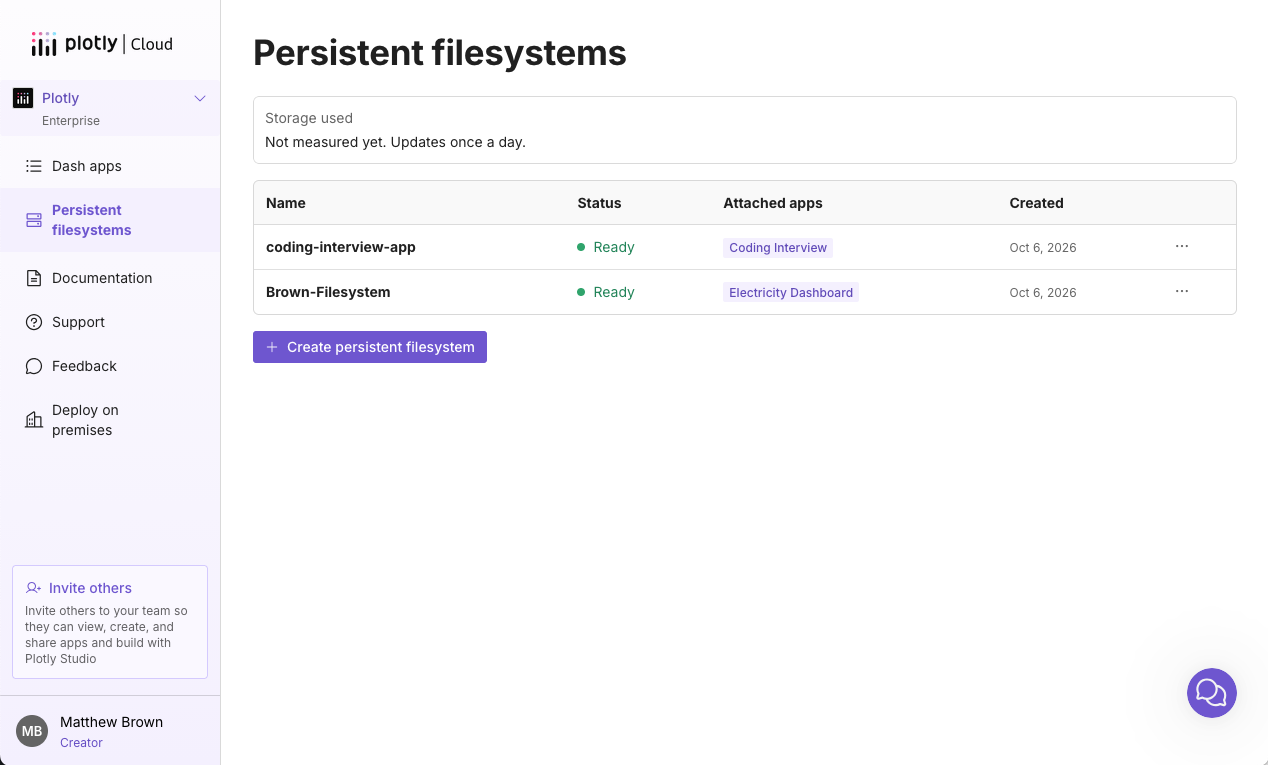
  • Filesystems page. See every filesystem on your team, its status, and the apps it's attached to, along with your team's storage usage and cost.

  • Share across apps. Mount the same filesystem into as many of your team's apps as you need.

  • Regular filesystem behavior. Read, write, rename, append, and delete files and nested directories.

  • Usage-based billing. There's no size to choose. Storage is billed on what's stored (in GB/mo). See pricing for details.

Availability: Pro and Enterprise plans.

For more information, read the announcement blog post and docs.
Build and Deploy Apps from Claude and Web-based AI Agents

New Features

Plotly Cloud Connector for Claude
You can now build, deploy, and manage Dash apps on Plotly Cloud directly from a conversation with Claude. The connector is available in the Claude connector directory. It combines Dash documentation search and Plotly Cloud app management in a single install, and Claude picks the right tool for each request.

Claude can search and read the Dash documentation, so the code it writes uses the current Dash API.

Claude can create, publish, start, stop, and delete apps on Plotly Cloud, check their status, and read their logs. If a build fails, Claude reads the build logs, fixes the issue, and redeploys. When the build succeeds, you get the live app URL in the same chat.

The connector is most useful in browser-based assistants like Claude.ai, which can't access your files or a terminal. This makes it possible for less technical team members to build and share apps on Plotly Cloud. For coding-heavy work or managing many files, the Plotly Cloud CLI may be a better fit.

The connector also works with Claude Code, Cursor, Windsurf, and other MCP-compatible clients. To add it manually, use this server URL: https://cloud.plotly.com/_mcp

To get started, open the Claude connector directory, search for "Plotly," and select Plotly Cloud. For setup instructions for other clients, see the Plotly Cloud MCP documentation.

Plotly Studio Embedded (beta)

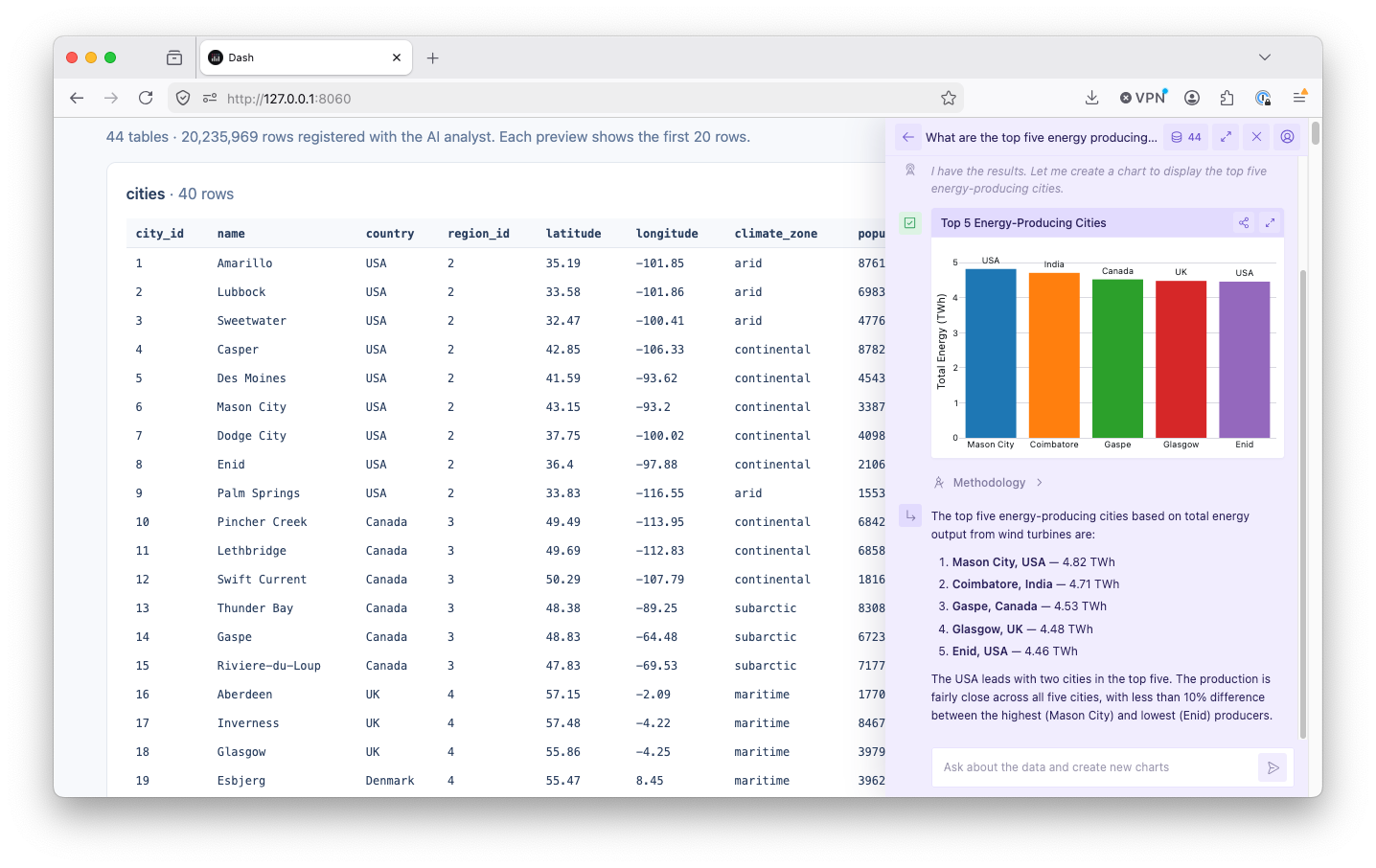
Your apps can now answer questions. Plotly Studio Embedded adds a floating AI chatbot to your published Dash app, letting viewers ask questions and explore the app's underlying data in natural language, in any language. It's in beta and available on all Plotly Cloud plans.

Plotly Studio Embedded makes it possible to add chat interaction with any app you have published to Plotly Cloud, with no code changes required for most apps.

To enable it, open the app's Plotly Studio Embedded tab and turn on Enable Plotly Studio Embedded for this app. Once the app rebuilds, a chat button appears in the published app for all viewers.

No code changes are needed for most apps: Studio Embedded automatically discovers your app's module-level dataframes (pandas, Polars, PyArrow, and GeoPandas are supported) and registers them for the chatbot. The Studio Embedded tab shows exactly which datasets are registered.

Only viewers with access to the app can use the chatbot. Each viewer authenticates with their own Plotly Cloud account, and conversations use AI credits from the viewer's team, not yours.

Head to the Plotly Studio Embedded tab of any published app to try it, or see the documentation for details.

Earlier updates